2FA Authenticator App With Backup: 5 Questions to Ask Before You Trust One
2FA authenticator app with backup: 5 questions to ask before you trust one, what happens to your codes if you lose your phone, and how Zelf Auth protects them.
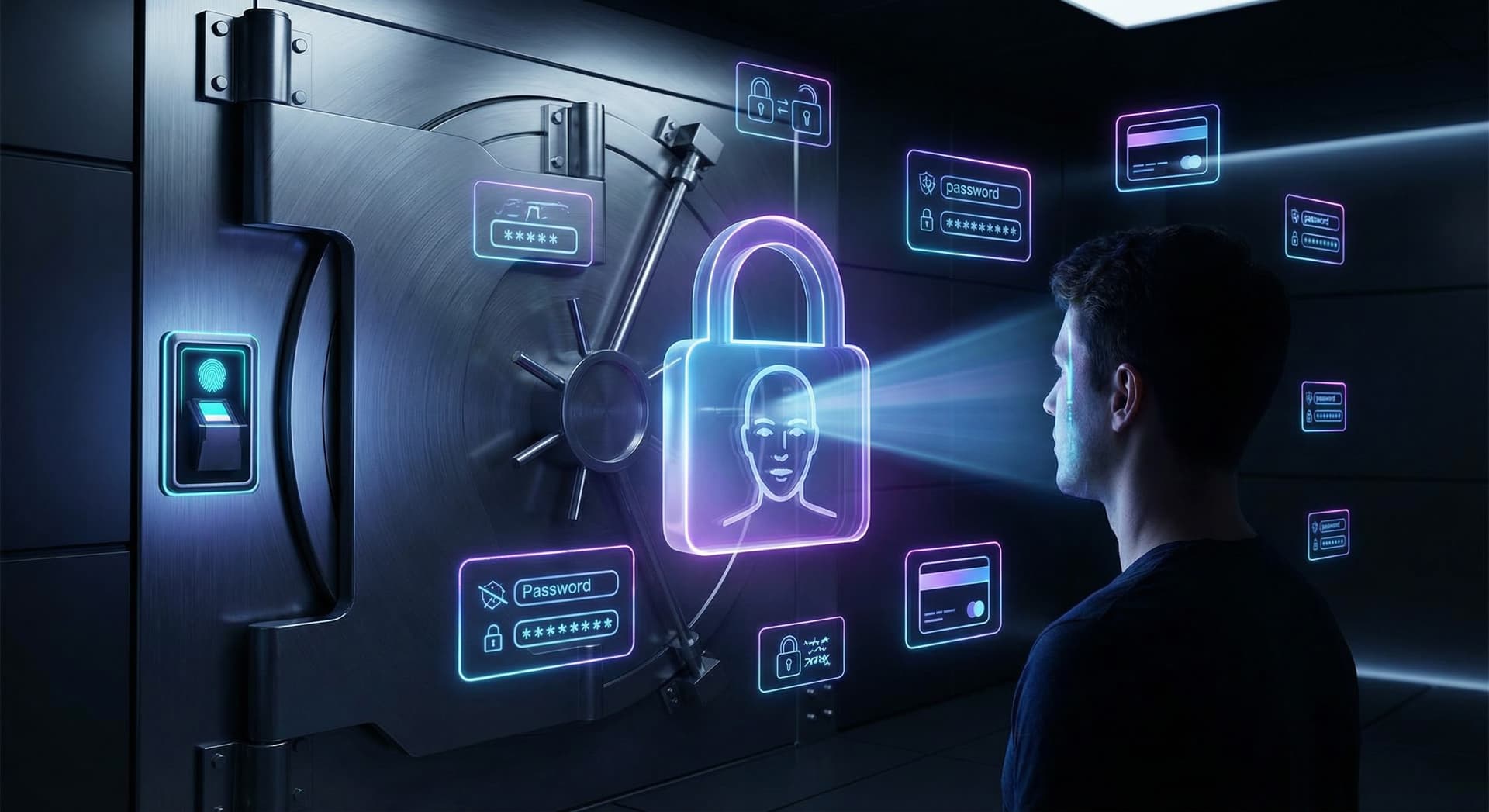
How authenticator codes work
What happens to your 2FA codes when you lose your phone
- The recovery codes the site gave you when you turned on 2FA.
- Another sign-in method you set up earlier, such as a security key or a second authenticator.
- The site's account recovery process, which can take days and may ask you to prove your identity.
Do this today, before anything goes wrong
- Save each site's recovery codes offline. Print them or write them down and keep them somewhere safe. If you never saved them, most sites let you generate a new set in their security settings.
- Check whether your current app has any backup at all. Open its settings and look for backup, sync, export or transfer options. If you find none, your 2FA secrets exist on one device only.
5 questions to ask about any authenticator's backup
- Where is the backup stored? Only on the device, in a company's cloud tied to an account, or in storage you control?
- Who can decrypt it? If the provider or anyone with your account password can read your secrets, the backup is only as strong as that account.
- What do you need to restore it? An account login, a separate backup password, your face? Make sure you will still have it after losing the phone.
- Does it work offline? Codes should still generate without a connection, and access shouldn't depend on a server being up.
- How are visible codes exposed on screen? Codes shown in plain view can be read by anything that can see your screen.
Cloud-synced backups: convenient, but tied to an account
Why the screen matters too
How Zelf Auth backs up your 2FA
- Create or import your 2FA accounts. You add OTP-based accounts the same way you would in a standard authenticator app.
- Encrypt them with HumanAuthn. Your 2FA secrets are encrypted and decrypted through HumanAuthn biometric encryption, so access is tied to your face. They stay encrypted at rest.
- Store them on IPFS. Encrypted 2FA data is stored through IPFS, decentralized-first storage, rather than only on a company's servers. Recovery keys are kept as encrypted QR codes on IPFS.
- Recover with your Zelf ID. Securing a Zelf ID is what lets you get back in after a lost phone. Registering a Zelf ID name is free.
Device-only vs cloud-synced vs Zelf Auth
| Device-only authenticator | Cloud-synced authenticator | Zelf Auth | |
|---|---|---|---|
| Where the backup lives | Nowhere, unless you export it yourself | The provider's cloud, linked to your account | Encrypted on IPFS |
| Who can decrypt it | Whoever holds the phone and unlocks it | Depends on the provider's encryption and your account security | Your face, through HumanAuthn |
| What you need to restore | Recovery codes for each site | Your account login and its recovery options | Your Zelf ID and a face verification |
| Offline use | Yes | Codes yes; restore needs the account | Yes |
Quick answers
Set up a 2FA backup before you need it
Frequently Asked Questions
What happens to my 2FA codes if I lose my phone?
If your authenticator kept its secrets only on that phone, the codes are gone with it. You'll need each site's recovery codes, another sign-in method you set up earlier, or the site's account recovery process. An authenticator with an encrypted backup lets you restore the secrets on a new device instead.
Can I back up the codes in my current authenticator app?
It depends on the app. Some keep secrets only on the device, others sync them to an account in the provider's cloud, and some let you export them. Open the app's settings and look for backup, sync or transfer. Then check who can decrypt that backup and what you'd need to restore it.
Are cloud backups of 2FA codes safe?
They can be, but their safety depends on how the backup is encrypted and who holds the key. If anyone with your account password can restore your 2FA secrets, the backup is only as strong as that account. Protect the account with a strong password and its own second factor, and keep recovery codes offline.
What are 2FA recovery codes and where should I keep them?
Recovery codes are one-time backup codes a site gives you when you turn on two-factor authentication. Each works once, so you can sign in if you lose your authenticator. Store them offline, printed or written down, somewhere safe and separate from your phone. If you lost them, most sites can generate a new set.
Does Zelf Auth work offline?
Yes. According to the Zelf Auth product page, the app works offline, so your 2FA codes are available on your device anytime and anywhere, without depending on a connection. Your 2FA secrets stay encrypted at rest and are protected by HumanAuthn biometric encryption, with encrypted backups stored on IPFS for when you need to recover.
Do I need a phone number or email for Zelf Auth?
No. Zelf Auth doesn't require a phone number or an email address. Access is tied to HumanAuthn biometric encryption and to your Zelf ID, which is what you secure to recover your 2FA accounts after losing a phone. Registering a Zelf ID name is free, and Zelf Auth is open-source.